

OpenCart Mobile App Homepage Modules

A well-designed homepage is the first thing your customers see when they open your mobile app. With OpenCart and the Purpletree theme, you can add multiple homepage modules to showcase products, highlight deals, and guide customers easily through your store.
-
Banner Module: -
The Banner module is perfect for promoting ongoing sales, highlighting seasonal offers, or creating call-to-action sections. You can use it for single large images or a set of promotional blocks that link to product pages, categories, or external URLs. Banners make your homepage visually appealing and help in driving conversions.
Get the Purpletree OpenCart Mobile App built with React Native.
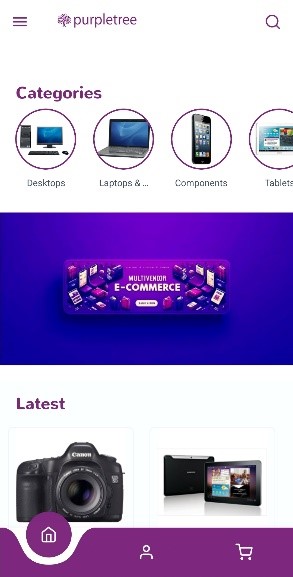
Setup:
- Install the Module – Go to Extensions → Extensions → Modules in your OpenCart admin panel and install the Banner module.
- Create new banner module - Go to Extensions → Extensions → Modules → banner → Add new

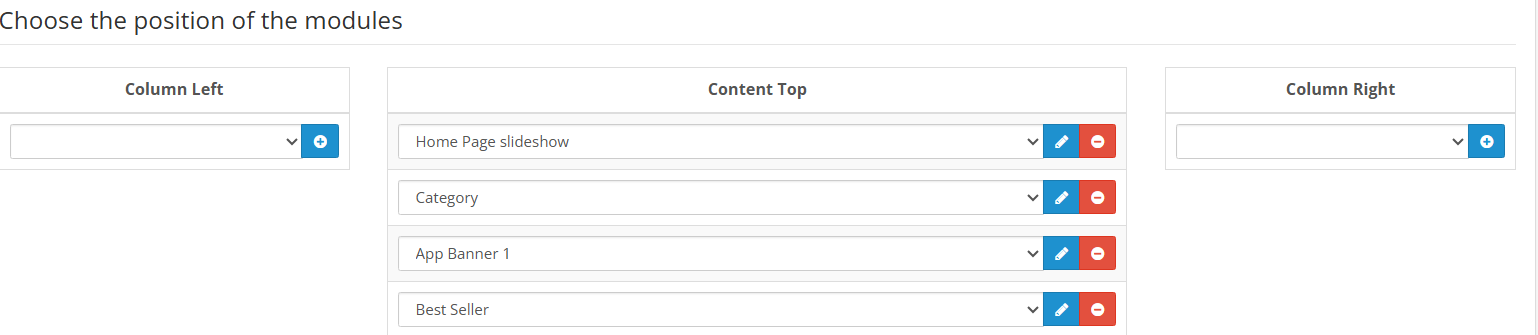
Assign to Layout – go to Design > layouts > choose Purpletree Mobile app home > From the Drop-down list, select the home page banner > Save
-
Bestseller Module:-
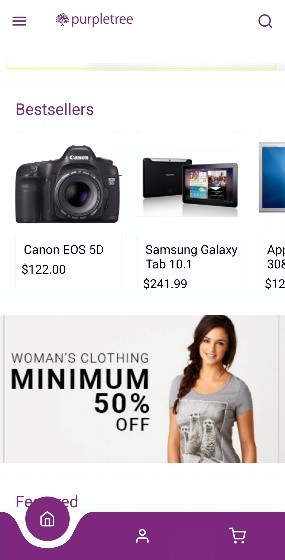
This module automatically showcases your top-selling products. It builds trust with customers because they see what other shoppers are buying, increasing the likelihood of conversions. Ideal for social proof and increasing repeat sales.
Setup:
- Go to Extensions → Extensions → Modules.
- Find Bestsellers and install it.
- Click Edit, then configure:
- Limit: number of products to display.
- Image Width & Height (e.g., 200×200).
- Status = Enabled.

- Assign it to the Home Layout → Content Top/Bottom.
-
Carousel Module: -
The Carousel module is a scrolling slider, usually used for showcasing brand logos or collections of images. It helps create a professional look and is often placed mid-homepage to highlight partnerships, featured brands, or promotional items.
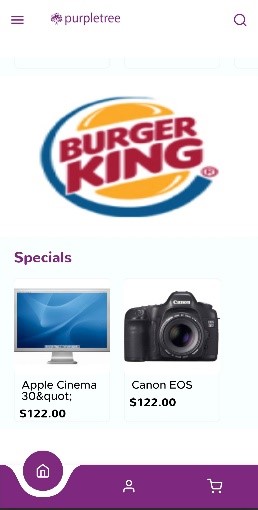
Setup:
- Go to Design → Banners → Add New
- Upload the images you want to showcase.
- Then go to Extensions → Extensions → Modules → Carousel.
- Create a new carousel, select your banner, set image size (e.g., 100×100), and Enable.

- Add it to Home Layout.
-
Category Module
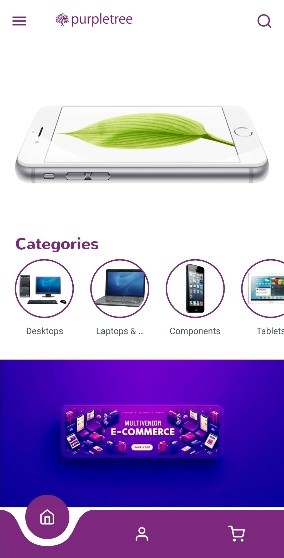
This module highlights product categories, giving shoppers quick access to your main departments. It improves navigation and helps customers find what they’re looking for without extra clicks. Adding category images can also make the homepage more engaging.
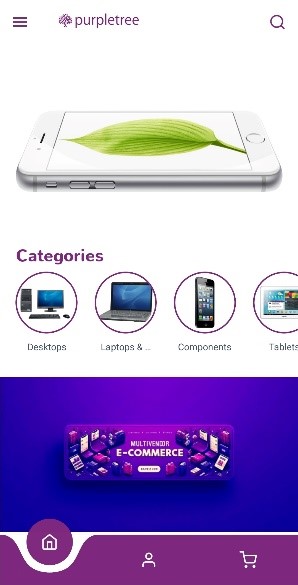
Setup:
- Go to Extensions → Extensions → Modules → Category.
- Install & Edit.
- Set Status = Enabled.
- Assign to Home Layout (Content Top or Side Column).
- Ensure your categories have proper images in Catalog → Categories.
-
Featured Products Module: -
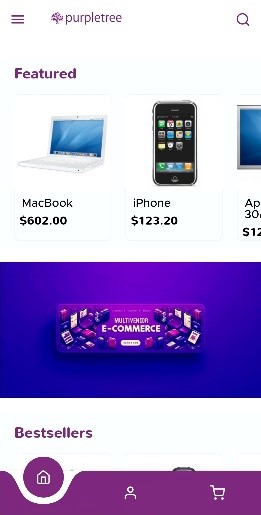
The Featured module lets you handpick specific products to display on the homepage. Use this for trending items, new launches, or high-margin products you want to push. It gives you total control over what to highlight.
Setup:
- Go to Extensions → Extensions → Modules → Featured.
- Add a new module, name it (e.g., “Homepage Featured”).
- Select the products manually from your catalog.
- Define Limit and Image Size (200×200 works well).
- Enable and assign to Home Layout.
-
Latest Products Module: -
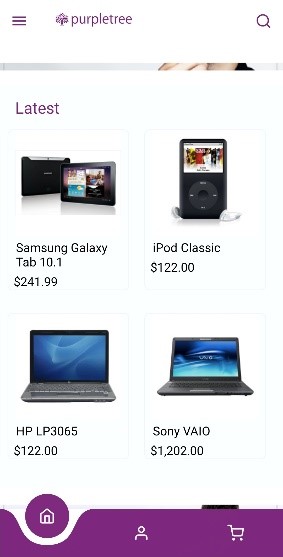
This module automatically shows the newest products added to your store. It keeps your homepage fresh and encourages returning visitors to check out what’s new. Perfect for stores with regular product updates.
Setup:
- Go to Extensions → Extensions → Modules → Latest.
- Install & edit.
- Set Limit, Image Size, and Status = Enabled.
- Assign to Home Layout → Content Top/Bottom.
-
Slideshow Module: -
The Slideshow is one of the most important homepage elements. It sits at the very top and rotates multiple large images—ideal for promotions, featured categories, or seasonal campaigns. It instantly captures customer attention.
Setup:
- Go to Design → Banners → Add New.
- Name it (e.g., “Homepage Slider”) and upload multiple slider images with links.
- Then go to Extensions → Extensions → Modules → Slideshow.
- Select your banner, set dimensions (e.g., 1080×400 for mobile).
- Enable and assign to Home Layout → Content Top.
-
Special Products Module: -
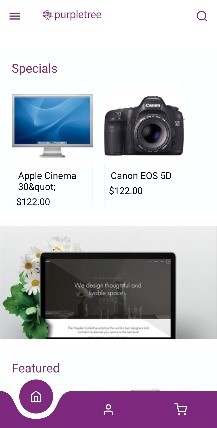
This section highlights products that are currently on special/discounted prices. It’s a strong sales driver since customers love browsing deals directly from the homepage.
Setup:
- Ensure products have Special Price set in Catalog → Products → Edit → Special Tab.
- Go to Extensions → Extensions → Modules → Special.
- Configure Limit, Image Size, and enable the module.
- Add to Home Layout → Content Top/Bottom.
Organizing the Homepage Layout: -
Once all modules are ready:
- Go to Design → Layouts → Purpletree Mobile App Home → Edit.
- Under Content Top / Content Bottom, add each module in the order you prefer.
- Suggested order: Slideshow → Category → Featured → Banner → Special → Bestseller → Carousel → Latest.
- Save your layout and refresh modifications if needed.