

How to Set Up Layouts for Different modules in the Amazincart OpenCart 4 Theme

The Purpletree Amazing Theme for OpenCart offers flexible layout options that let you design Home page of your store exactly how you want. Whether you’re customizing the homepage, adding product sliders, or showcasing special categories, understanding how to set up page layouts is key to creating a professional storefront.
More info on Opencart 4 AmazingCart Marketplace Theme.
-
Accessing the Layout Editor
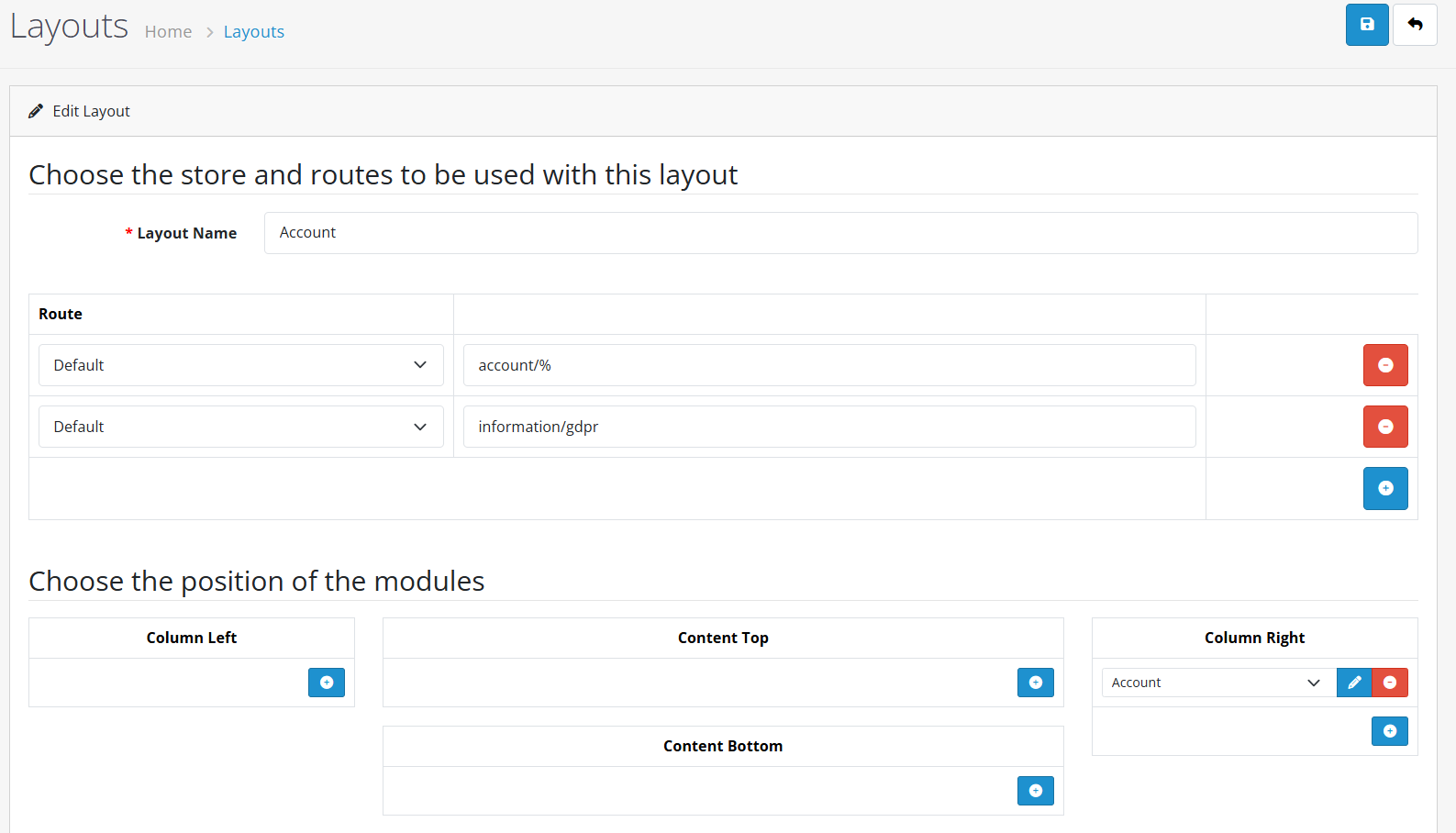
OpenCart allows you to assign different modules to specific page sections using the layout editor.
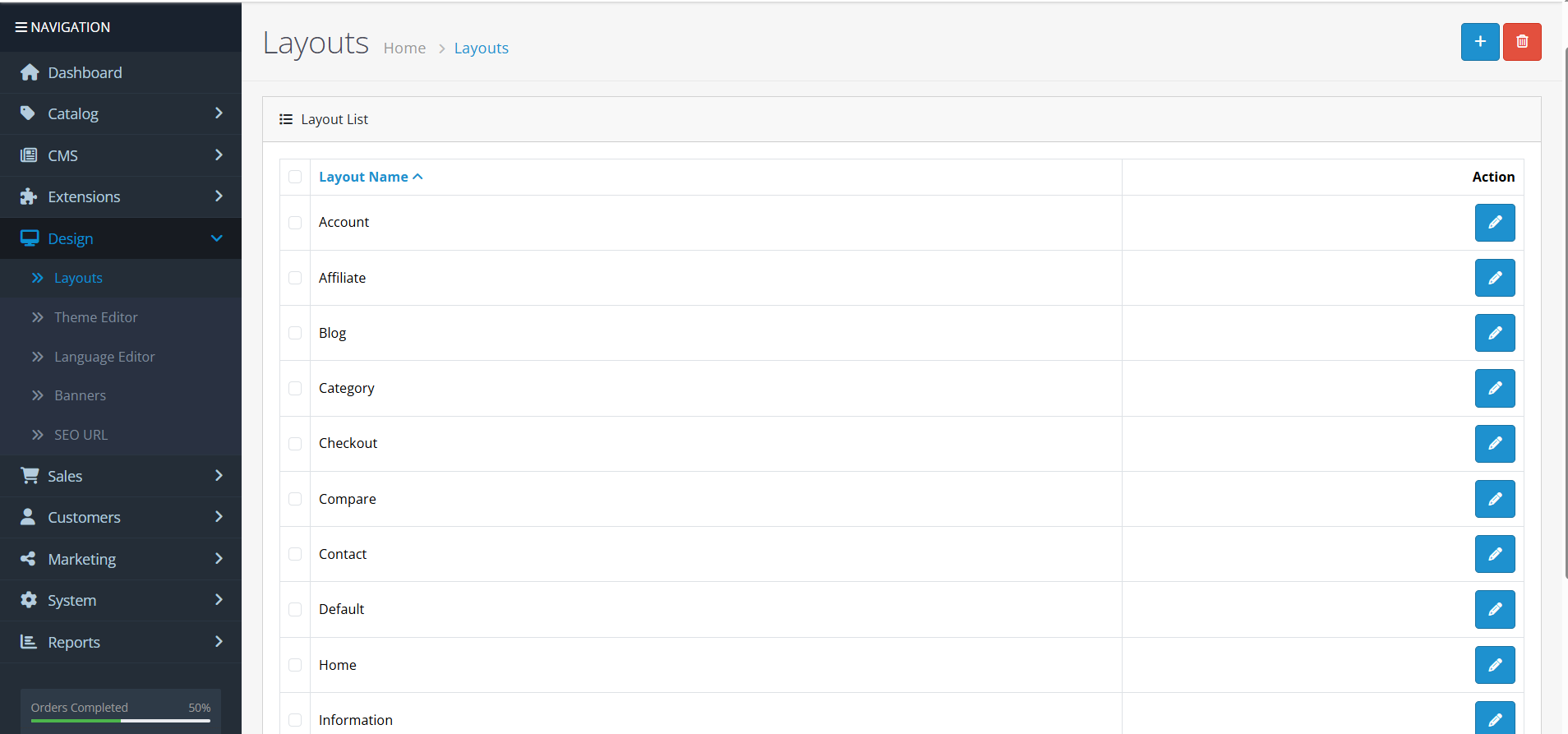
- Go to Design > Layouts in the Admin Panel.
- Choose the page you want to edit (e.g., Home, Category, Product, etc.).
- Click Edit to customize its content areas.
-
Understanding Layout Sections
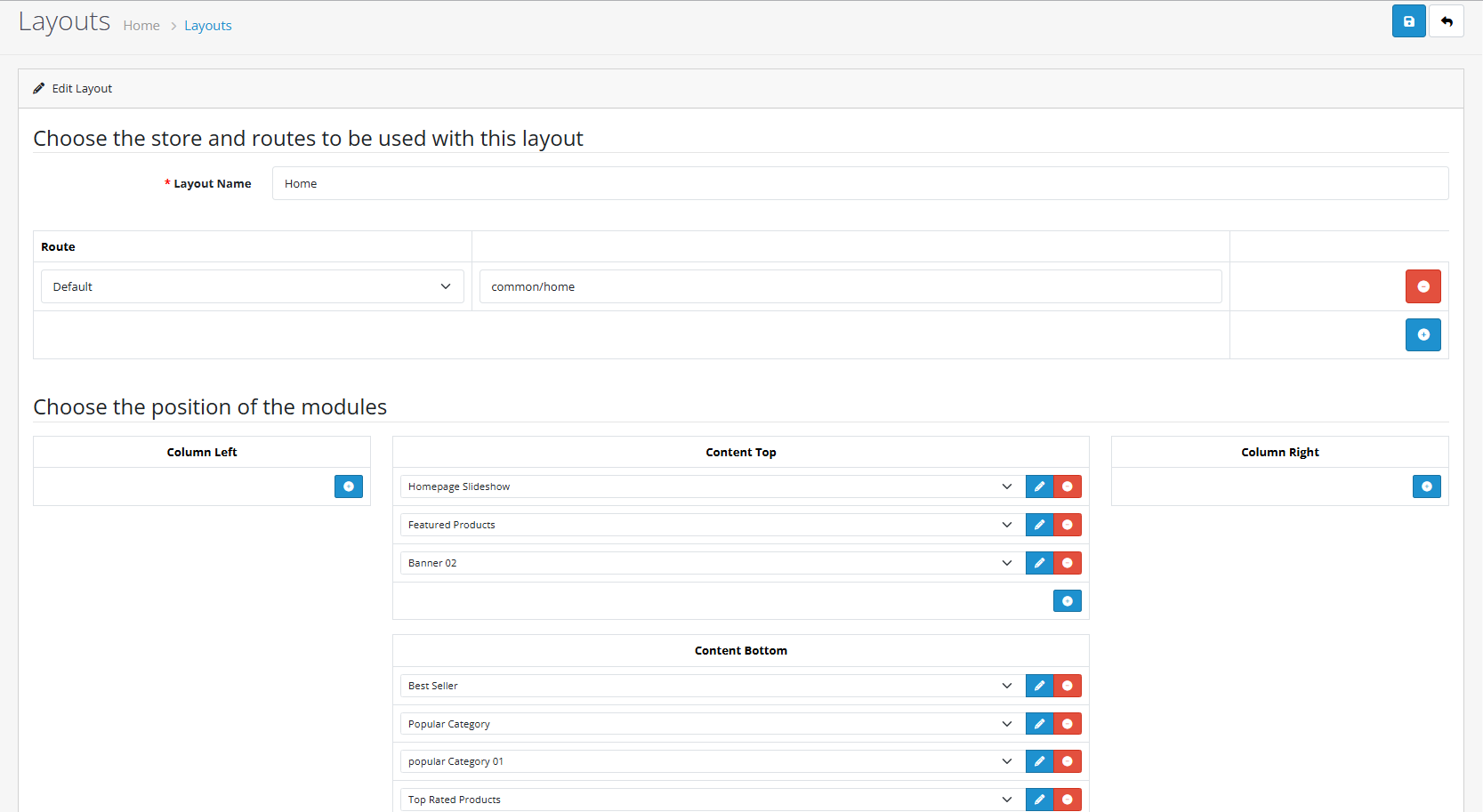
Each page layout is divided into multiple sections:
- Content Top – Great for featured products, promotional banners, or category blocks.
- Content Bottom – Appears at the bottom of the page content; ideal for additional product carousels or category displays.
-
Setting Up the Homepage Layout
To create a visually appealing homepage:
- Enabling the Theme
- Go to Extensions > Extensions > Modules > Purpletree Theme Settings > Enable
- Edit the Home Layout
- Navigate to Design > Layouts > Home > Edit.
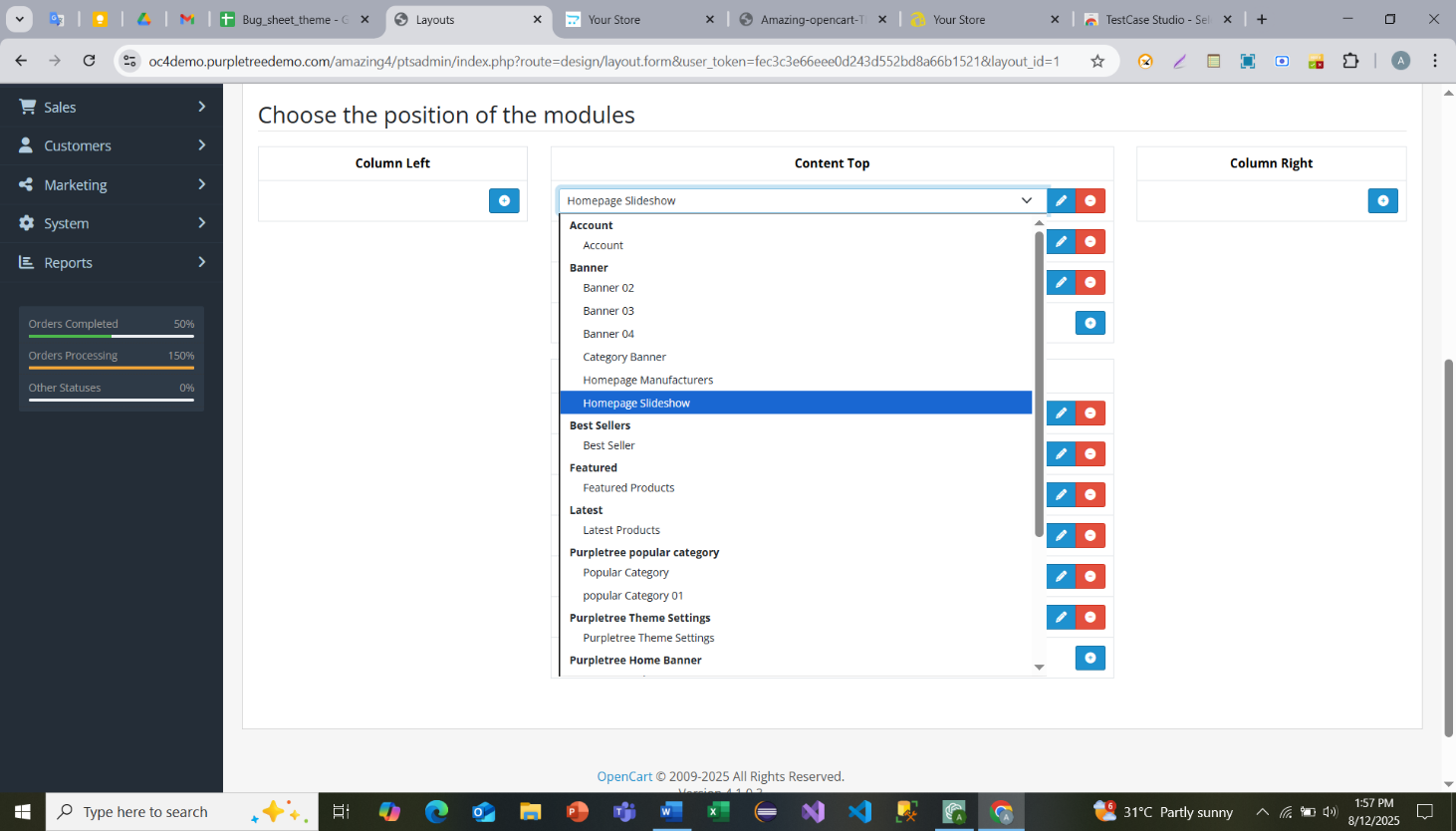
- Add Modules to Content Sections
Add new module > select any module from the dropdown > save
- Content Top:
- Featured Products Module
- Purpletree Home Banners (3 banners set)
- Purpletree Popular Category Module
- Another set of Purpletree Home Banners
- Content Bottom:
- Purpletree Popular Category Module again for extended browsing.
- Configuring Modules for Layouts
Before adding modules to layouts, make sure they’re set up correctly:
- Purpletree Home Banner:
- Go to Design > Banners to add images.
- Install the module, and assign your banner with correct dimensions.
- Top Rated Products:
- Install the module, choose image size (ideal: 500x300), set status to Enabled.
- Popular Category:
- Add desired categories, set product limits, and image dimensions (200x200 recommended).
- Recently Viewed Products:
- Customize the display limit, slider count, and image size.
- Featured Products:
- Select products manually to display in a prominent section.
- Applying Layouts to Other Pages
You can use similar steps to customize layouts for category pages, product detail pages, or any other section:
- Go to Design > Layouts.
- Select the desired page layout (e.g., Category, Product, Manufacturer).
- Add modules to Content Top, Content Bottom, or side columns.
- Applying Layouts to Other Pages
You can use similar steps to customize layouts for category pages, product detail pages, or any other section:
- Go to Design > Layouts.
- Select the desired page layout (e.g., Category, Product, Manufacturer).
- Add modules to Content Top, Content Bottom, or left and right columns.