

How to Install the Purpletree Amazecart Theme on OpenCart 4

Installing the Purpletree Amazecart theme on your OpenCart 4 store enhances your storefront with a modern, responsive design and powerful UI features. This guide walks you through the step-by-step process to install and activate the theme directly from the OpenCart admin panel—no coding required.
1. Login to Admin Panel
Start by logging in to your OpenCart 4 admin dashboard.
2. Upload the Theme
-
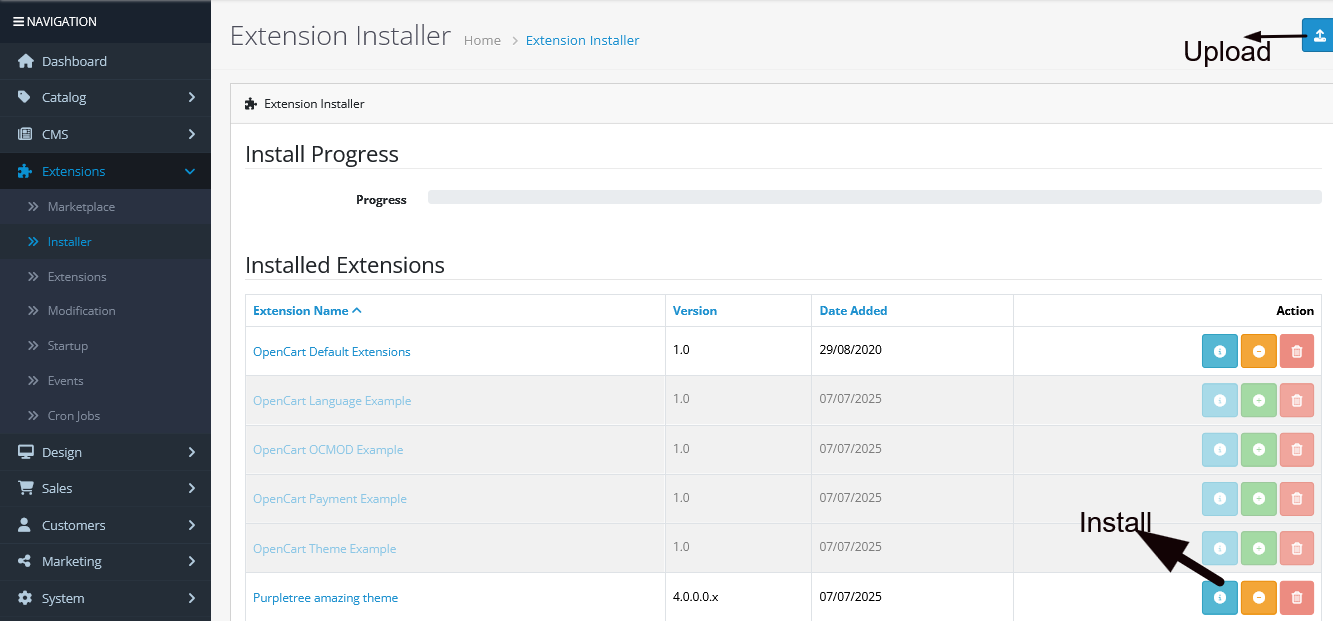
Navigate to: Extensions → Installer
-
Click Upload and select the
.ocmod.zipfile from your Amazecart theme package. -
Wait for the success message confirming successful upload.
3. Set Admin Permissions
-
Go to: System → Users → User Groups
-
Click Edit on the Administrator group.
-
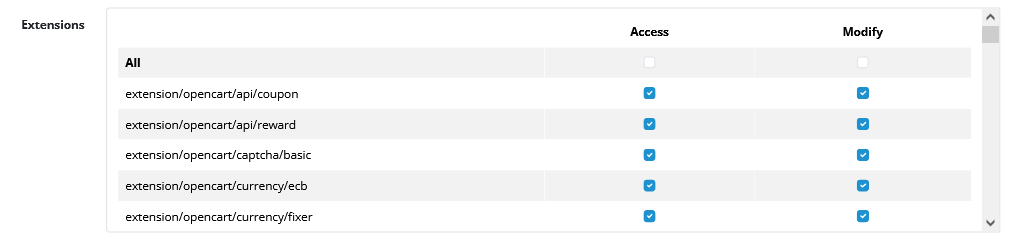
Under both Access Permission and Modify Permission, check all boxes related to the theme.
-
Click Save.
4. Install the Theme Module
-
Go to: Extensions → Extensions
-
Choose Modules from the dropdown.
-
Find and Install the Amazecart theme module.
-
Enter the License Key provided with your theme.
-
Click Save.

5. Enable the Theme
-
Go to: Extensions → Extensions
-
Select Themes from the dropdown.
-
Click Edit next to Amazing theme.
-
Set status to Enabled.
-
Click Save.

6. Apply the Theme to Store
-
Go to: System → Settings
-
Click Edit on your store.
-
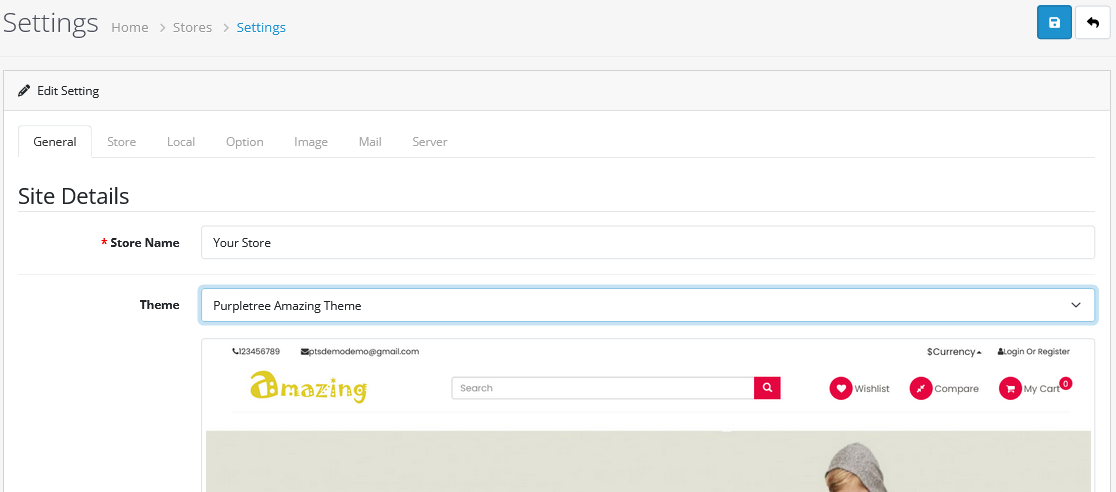
Under the General tab, go to Theme.
-
Select the newly installed theme.
-
Click Save.