

Purpletree License and Ticketing System – New Updates
By Admin
| Jan 12, 2026
Purpletree License and Ticketing System – New Updates
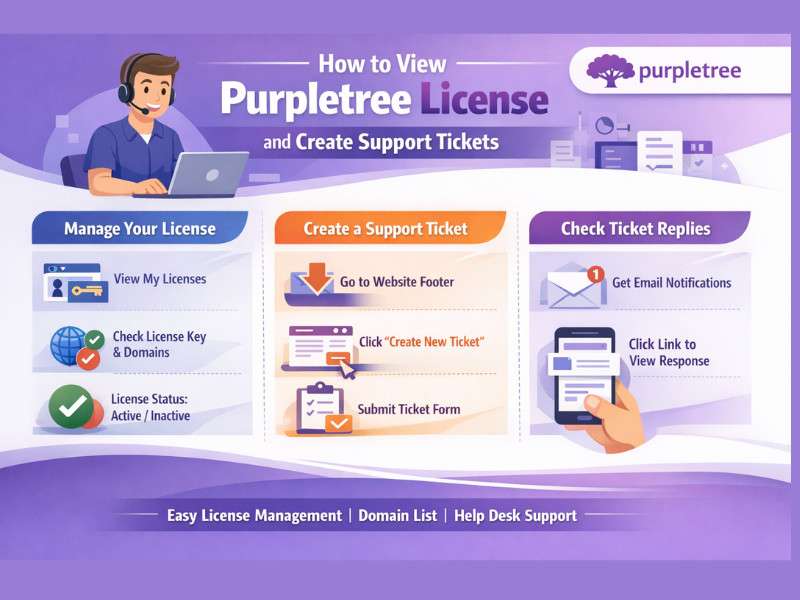
View Your License and Domains
Step 1: Login to Your Account
Go to the Purpletree website and log in using your registered email and password.
Step 2: Open Dashboard
After login, you will see your account dashboard.
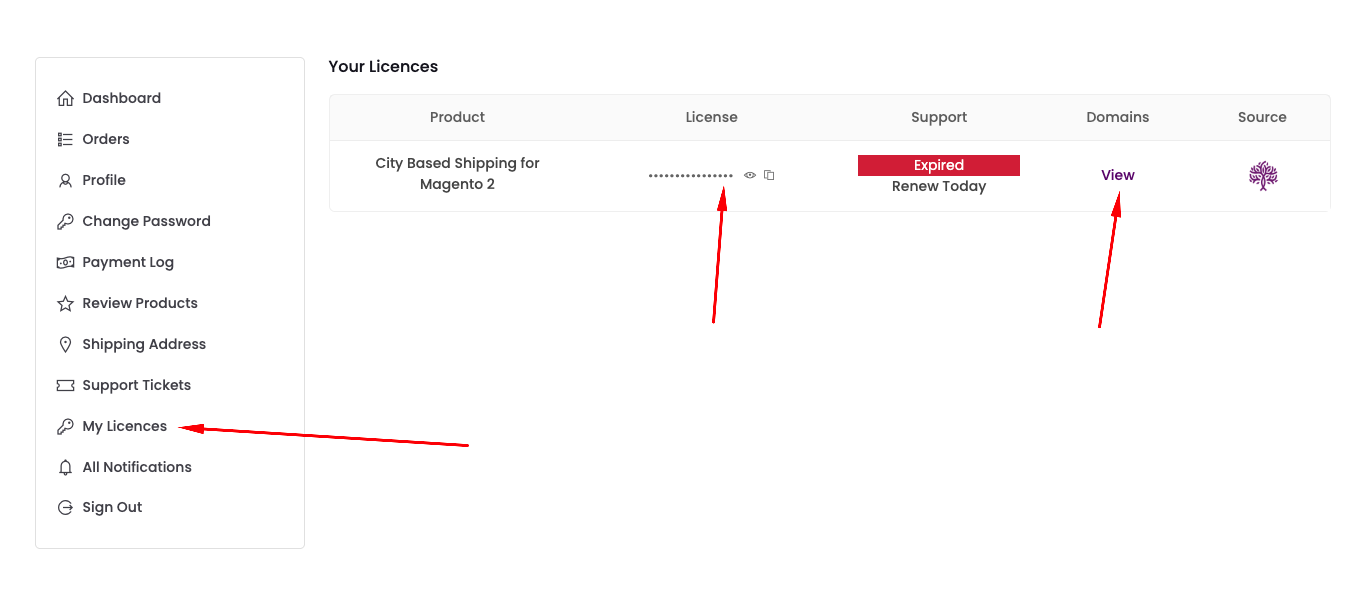
Step 3: Click on View My Licenses
In the dashboard menu, click on My Licenses.
Step 4: Check License Details
Click on the View button to see full license details.
You can see:
- License key
- Active domains
- License status
Create a Support Ticket
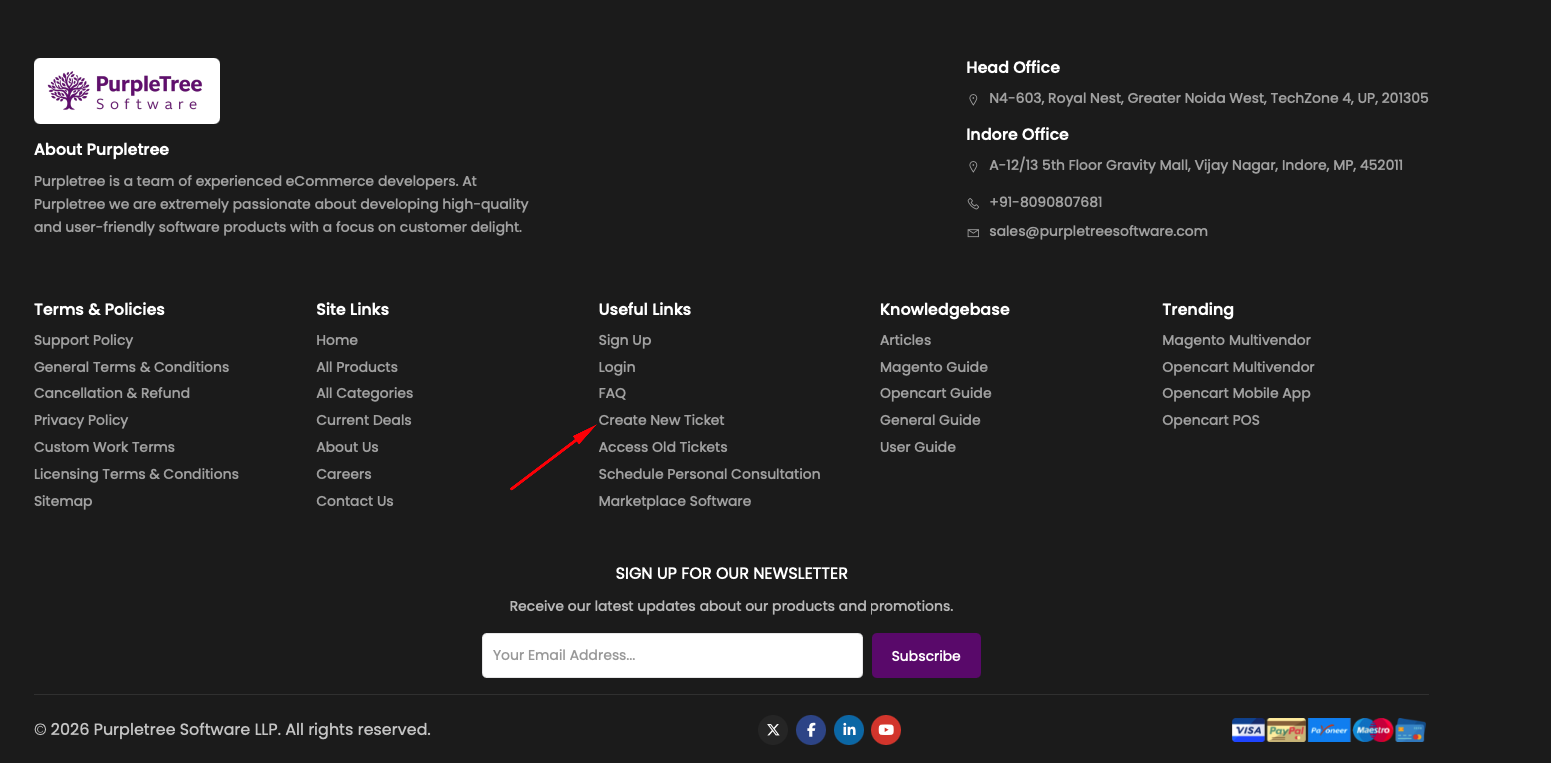
Step 1: Go to Website Footer
Scroll to the bottom of the Purpletree website.
Step 2: Click Create New Ticket
Click on Create New Ticket in the footer.
Step 3: Fill Ticket Details
Enter the required information carefully.
Subject
Pririty
- Issue description
Attach images/videos if required 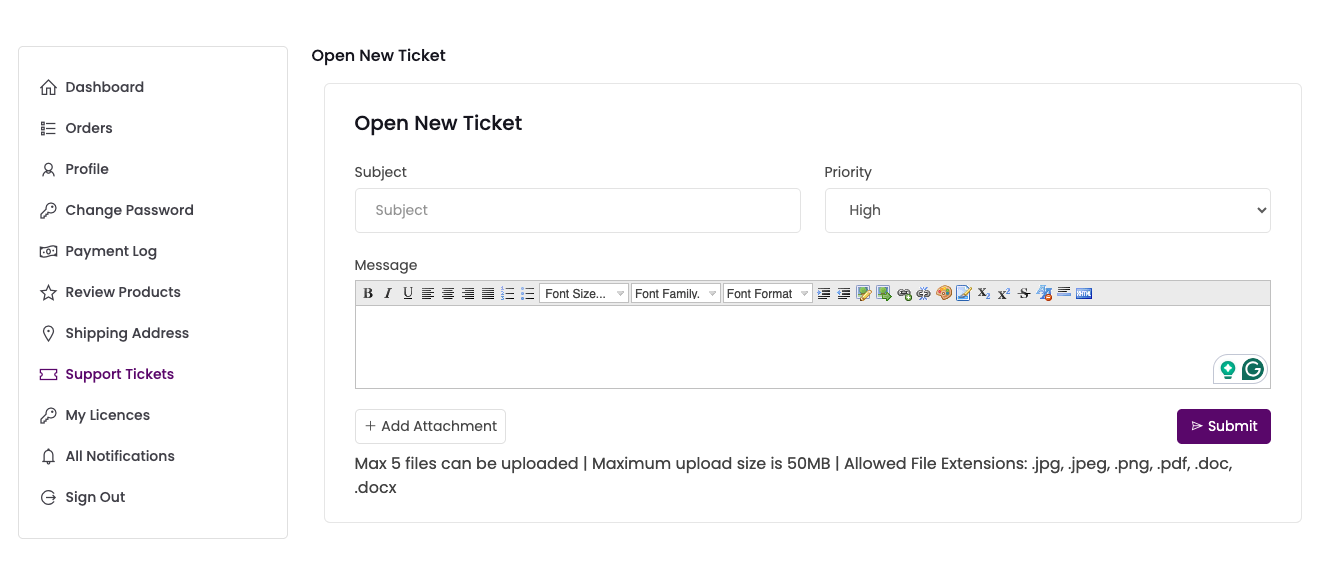
Step 4: Submit Ticket
Click the Submit button to send your ticket.
Check Ticket Replies
Email Notification
You will receive an email when our support team replies.
Open Reply Link
Click the link in the email to view the response.
Check from Dashboard
You can also log in and check replies from your account dashboard.