

How to use admin approval settings for sellers & seller products

Admin needs to select seller & seller product approval required Yes/No from admin, For enabling and disabling this setting. If selected yes seller approval required from admin then admin needs to approve seller store also if select yes product approval required then admin needs to approve the products, If these settings selected No respectively then seller products/ stores will be shown instantly as soon they are created.
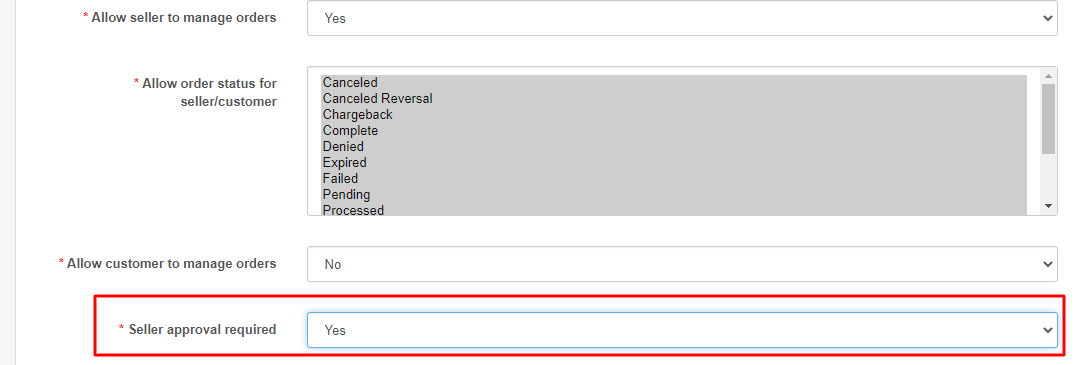
Seller approval admin Settings
For the setting of admin approval for the seller in Purpletree Opencart Multivendor
Please go to Opencart admin>Multivendor>Settings>Seller Approval required>Yes
(please select Yes if you want admin approval otherwise No)
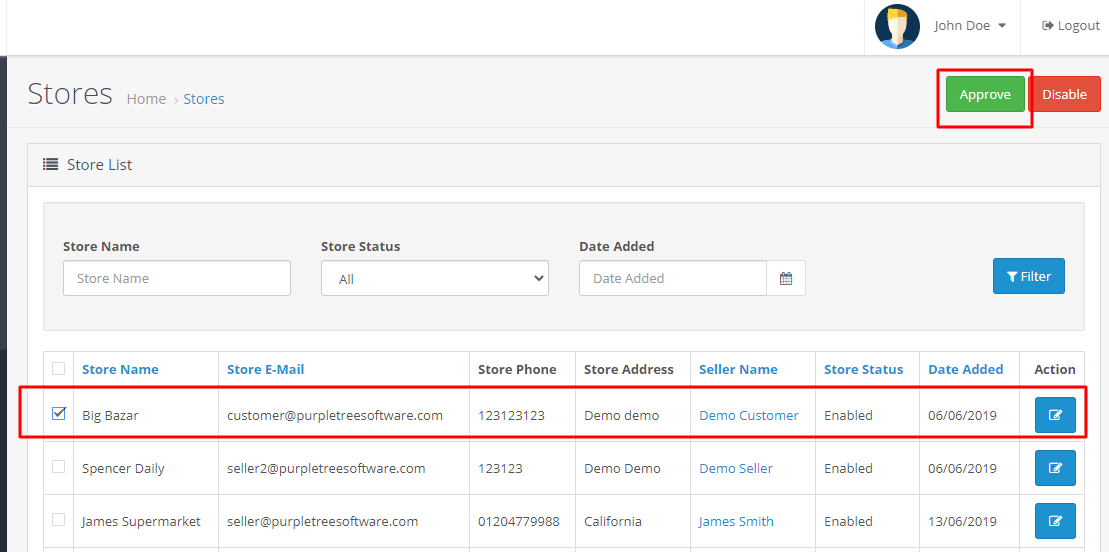
Approve sellers from admin
Please go to admin>Multivendor>Stores>Select Store>Approve
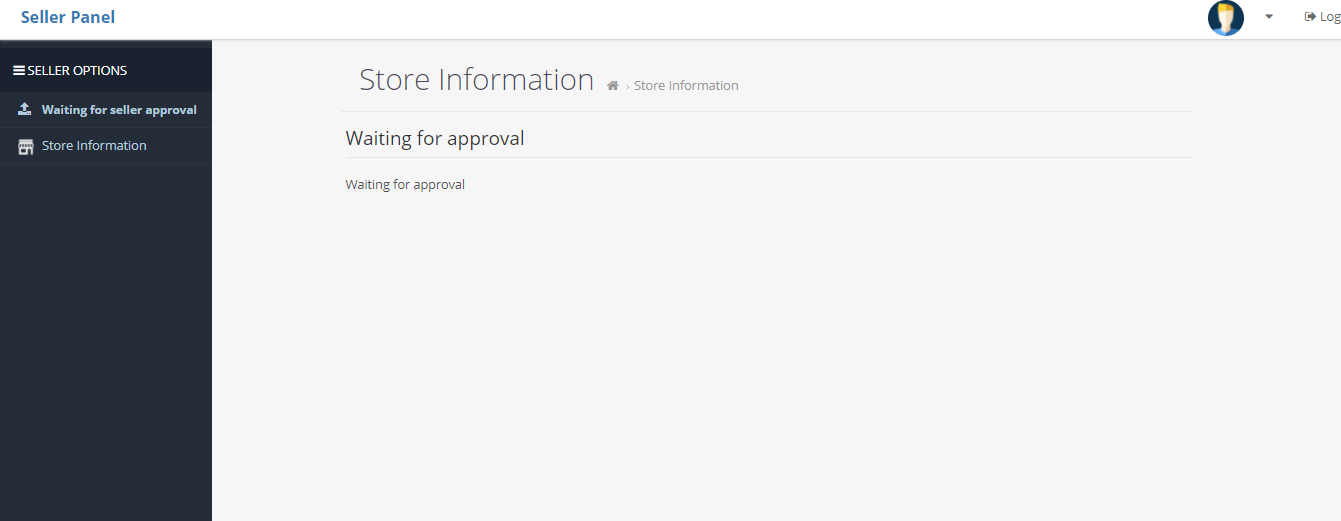
Frontend view with/without approval from the admin
When a new seller is registered and admin approval is set to yes, then it will appear as
After admin approval, it will show as seller panel
Product approval Settings
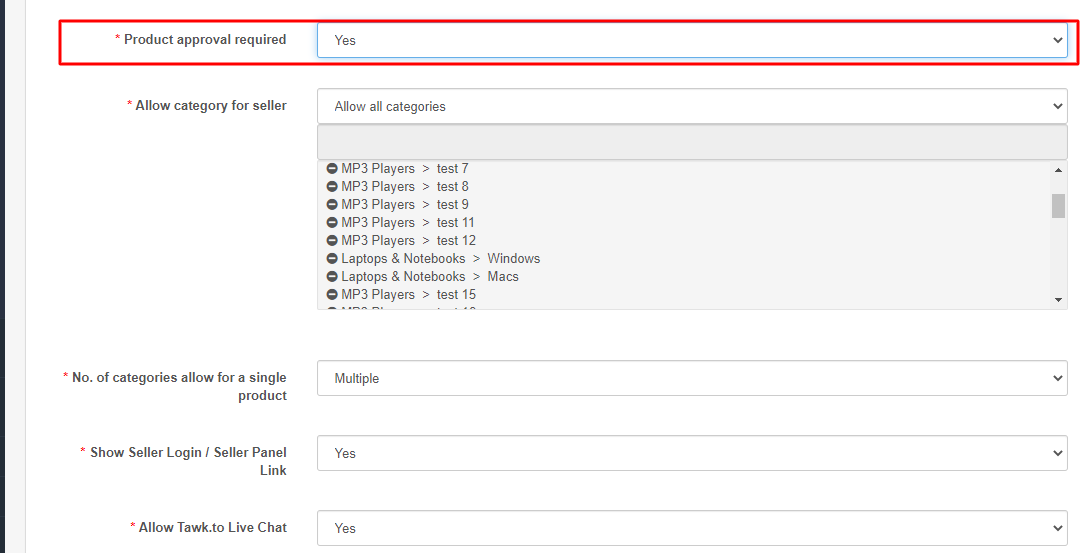
For the setting of admin approval for seller products in Purpletree Opencart Multivendor
Please go to Opencart admin>Multivendor>Settings>Product Approval required>Yes
(please select yes if you want admin approval otherwise no)
Approve products from admin
Please go to admin>Multivendor>Seller Products>Select Product>Approve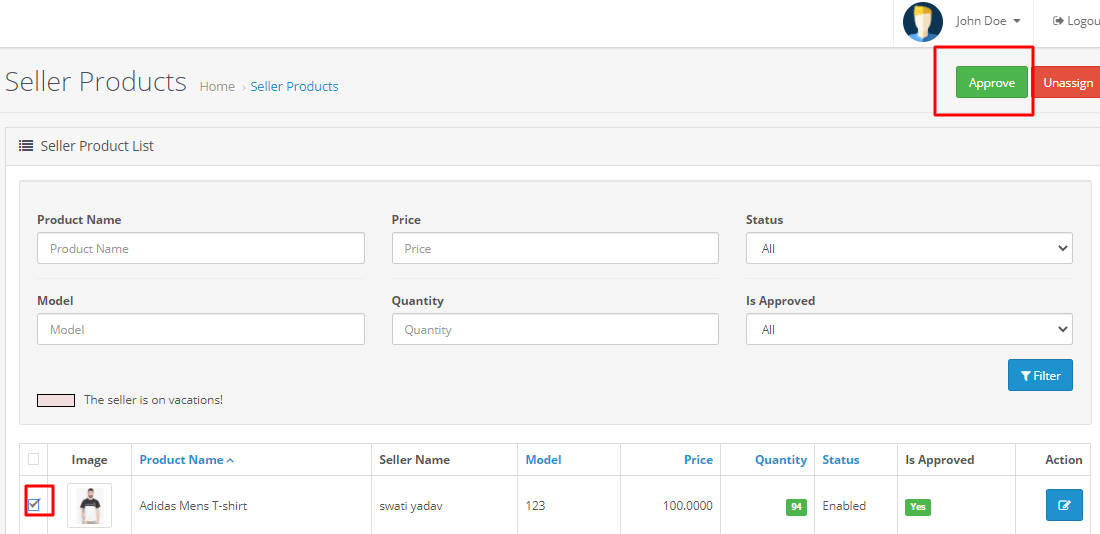
After the admin approves the product they will appear in the store & website for sale.
More details of Purpletee Opencart Complete Multivendor Marketplace here.